How to Import PowerPoint Slides into Articulate Storyline
So, you’ve got this amazing PowerPoint deck that you’ve designed (or maybe you’ve been handed one from a subject matter expert), and you’re thinking to yourself, “Well, gosh! I could save a bunch of time if I could just import this deck directly into Storyline!”
Well, the good news is that Storyline makes it super easy to import PowerPoint slides into your projects! However, depending on your PowerPoint file, attempting to import it into Storyline may end up costing you more time.
So, in this article, I’ll share how to import PowerPoint slides into Articulate Storyline along with all the reasons why I rarely recommend it.
How to Import PowerPoint into Storyline
Now, before I get into why I’m not a fan of importing PowerPoint slides into Storyline, let me explain how to do it. Luckily, Storyline makes this process super easy.
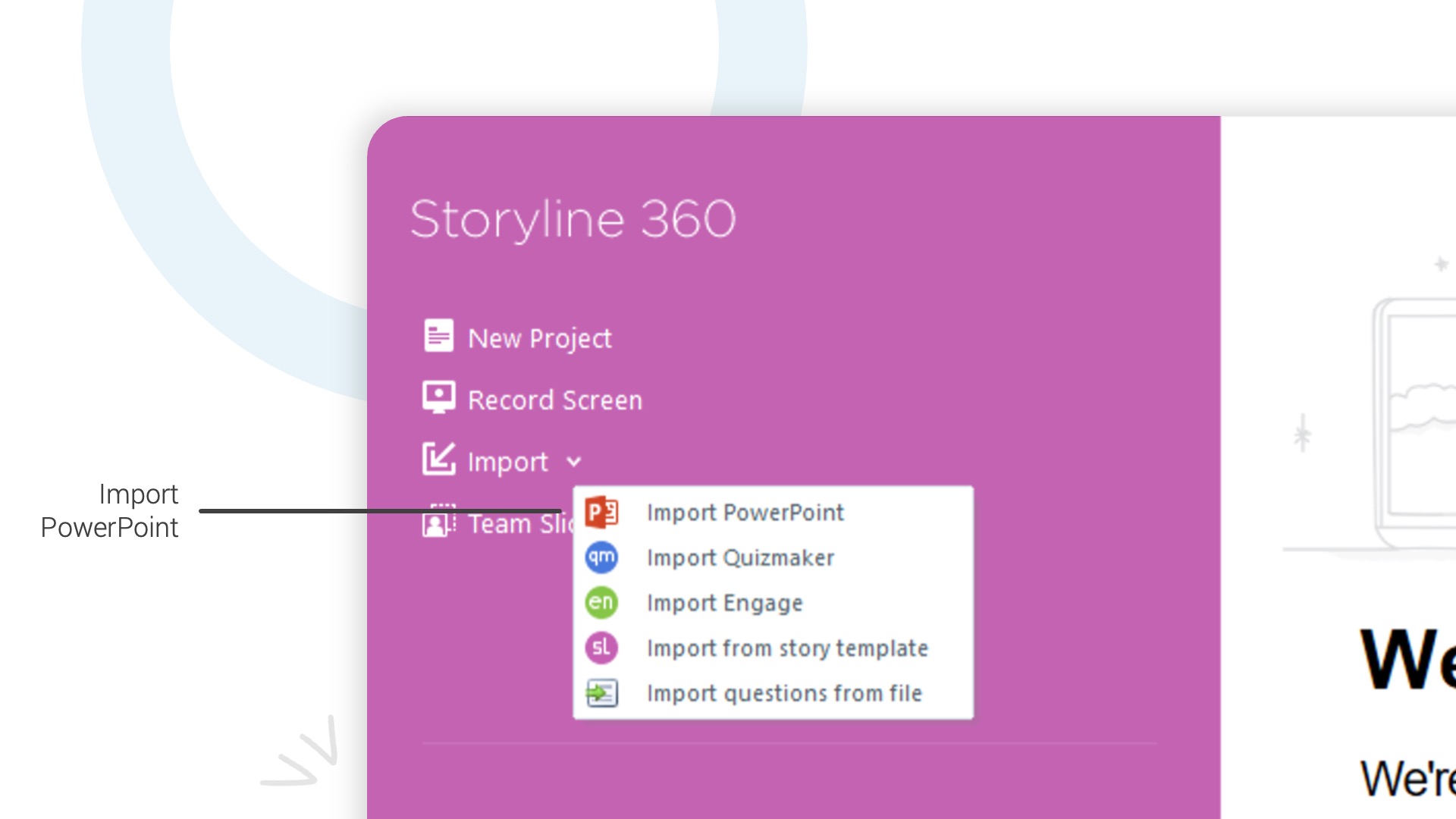
If you’re creating a new project, you can simply select the option for Import on the start screen and then click the option for Import PowerPoint. From there, Storyline will ask you to select a PowerPoint file you’d like to import.
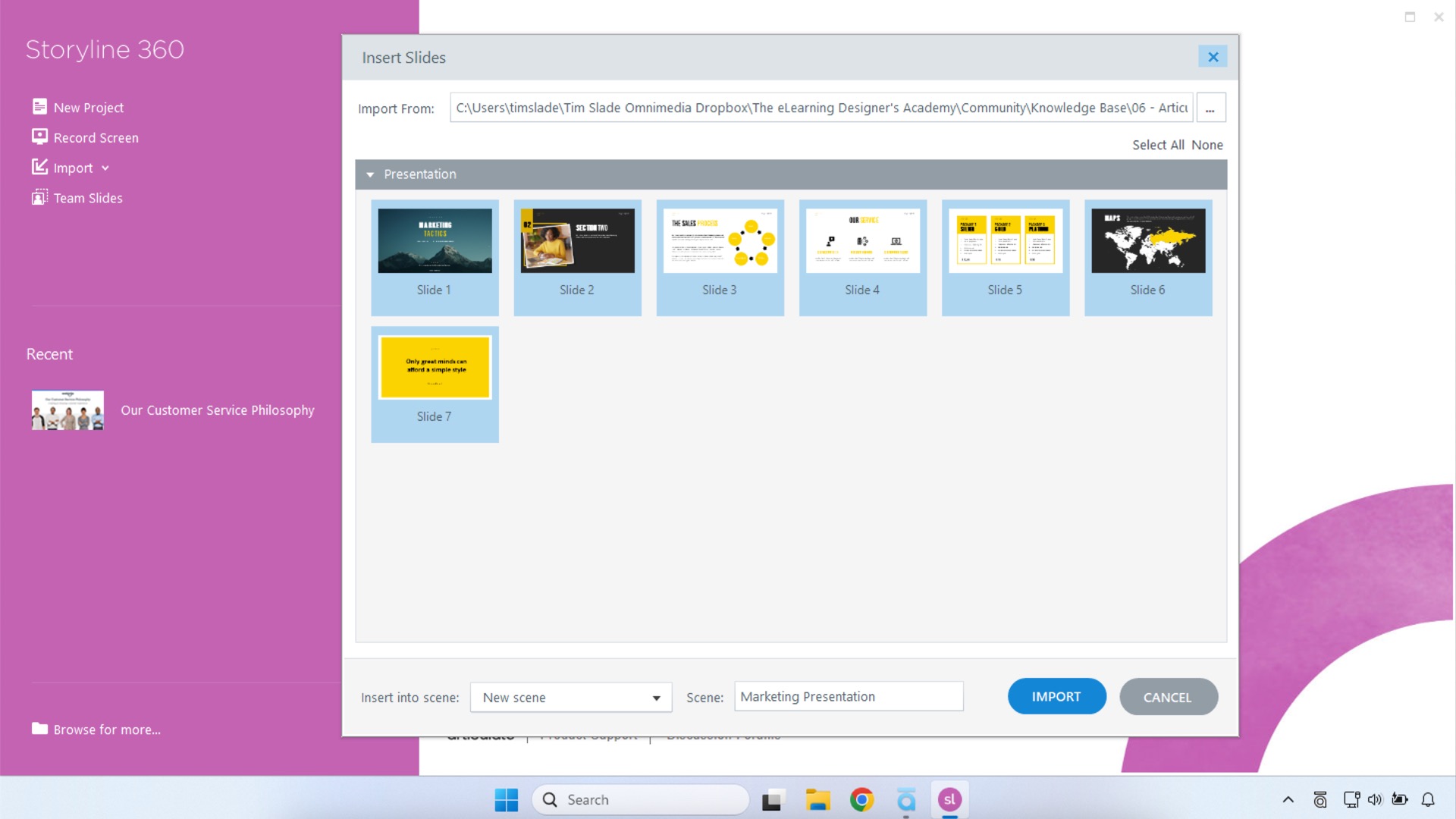
Once you’ve selected your desired PowerPoint file, Storyline will scan the file and present you with thumbnails for each slide contained within the presentation. From here, you can decide if you want to import all of the slides or select individual slides. You can also decide if you want to import the slides into a new or existing scene within your project.
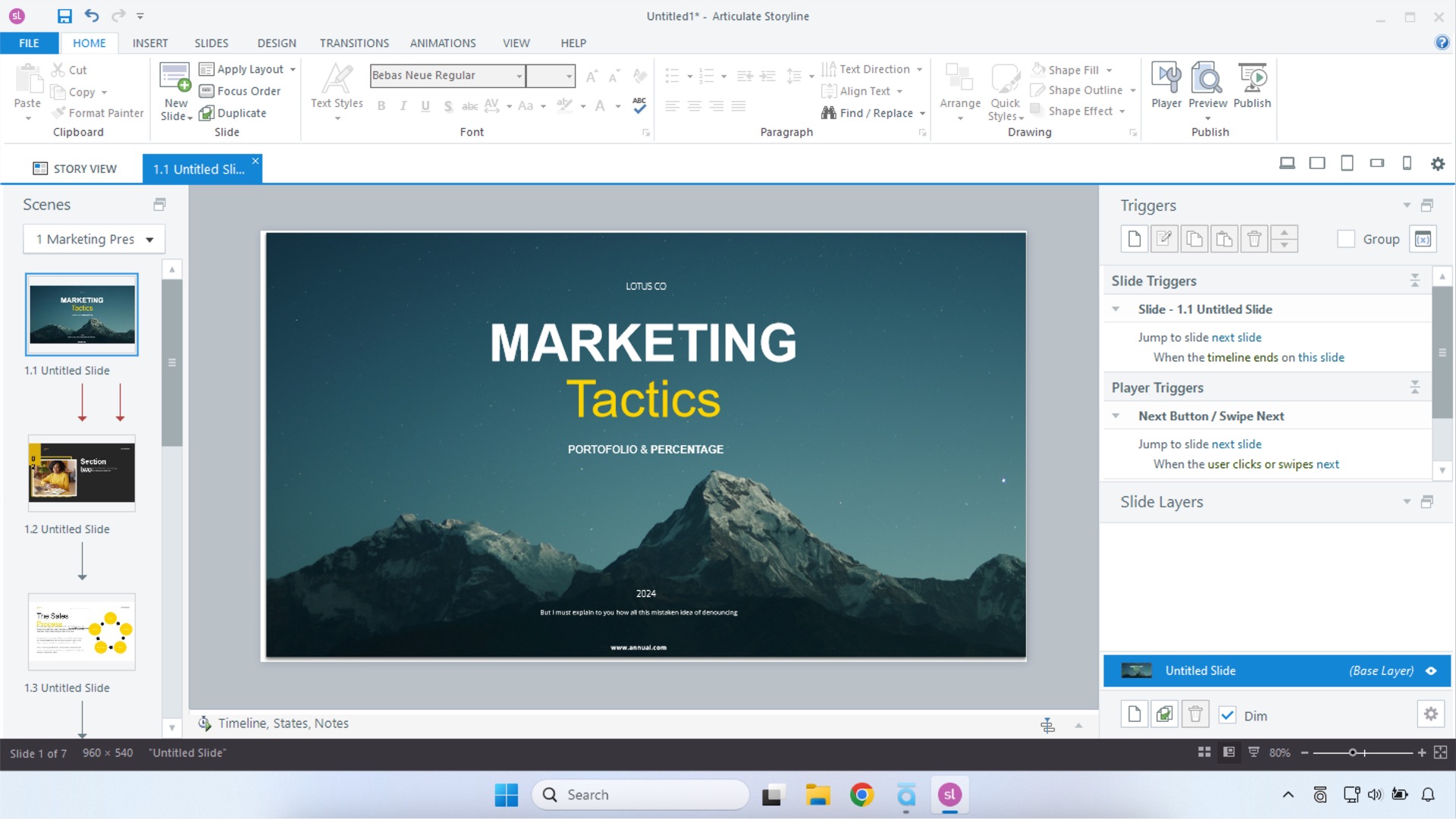
Next, you simply click the Import button. Storyline will then take a few moments to import the slides into your project. And that’s it! Pretty simple, right?
And what’s great about Storyline’s ability to import PowerPoint slides is that almost everything imported is directly editable in Storyline. This means you don’t need to go back to the original PowerPoint file if you need to make changes—you can do it all directly in Storyline.
Free Course: 10-Day Career Mindset Reset
Inside The eLearning Designer’s Academy, we think a little differently about professional development and career growth. Enroll in our free 10-Day Career Mindset Reset to start thinking differently about your skills, career, and confidence!
Tips & Considerations for Importing PPT into Storyline
So, as I promised at the start of this article, the process of importing your PowerPoint slides into Storyline is super easy. But what’s the catch and why don’t I recommend you import your own PowerPoint slides?
Well, here’s the thing: While the process of importing PowerPoint to Storyline is very quick and easy, Storyline doesn’t always do a great job of it. So, here are some things you need to think about when importing PowerPoint slides into Storyline:
For starters, it’s important to note that not every feature available in PowerPoint is supported in Storyline. So, if your PowerPoint file includes elements like SmartArt, certain animations, or effects, they won’t be supported in Storyline. In those instances, Storyline will either remove the effect or flatten the graphic into an uneditable image.
Next, in order to import a PowerPoint file into Storyline, you must have PowerPoint installed on your computer. And while this seems like a nonissue, if you’re using Storyline on a Mac, it’s not good enough to have PowerPoint installed on the Mac side of your computer. You also need PowerPoint installed on the Windows side as well.
And finally, Storyline will often move, change, or alter the objects imported from PowerPoint. This might include altering the fonts of text, changing the color of shapes, etc. While this will vary from project to project, you’ll find that you have to go through each imported slide with a fine-toothed comb to identify and fix any of the objects or text Storyline has changed.
The Bottom Line
So, that’s an overview of how to import PowerPoint slides into Articulate Storyline. Like I said, it’s super easy, but you need to decide if the juice is worth the squeeze. In many instances, I’ve found it easier and less time-consuming to simply rebuild my slides manually in Storyline rather than trying to find and fix all of the issues created during the importing process—at least I know it was done right.
So, what other tips or questions do you have about importing PowerPoint slides into Storyline? Share them by commenting down below!