How to Build an Instructional Design Portfolio with Google Sites
If you’re like the vast majority of folks out there trying to build your skills, grow your career, and become an instructional designer or eLearning developer, then there’s no doubt you know the importance of creating a portfolio. After all, a well-designed portfolio is a great way to showcase your skills and help hiring managers see what you’re capable of doing.
However, with so many different options for building an instructional design portfolio, it’s easy to become overwhelmed with which tool to use. Some tools are easy to use, and others can be very complex. Some are cheap, and some can require a significant investment. And, of course, if you’ve never built a website or portfolio before, you want to make sure you pick the right one that works for you.
This is where Google Sites can be an excellent option for building your first instructional design or eLearning portfolio website. Not only is Google Sites incredibly easy to use, but it’s also completely free!
So, in this article, I’ll walk you through how to build an eLearning and instructional design portfolio using Google Sites.
How to Build an Instructional Design Portfolio Step-by-Step with Google Sites
While using Google Sites is very easy to use, creating any website or portfolio from scratch can be a complex process. Not only do you want to properly showcase your skills, but you also want your portfolio to look good and effectively tell your story.
So, if you’re following along with my step-by-step video above, I walk through how to build the example instructional design portfolio for Sara James, a hypothetical instructional designer. In the video, I also share a simple planning document to help you draft all of the written content (also known as copy) for your portfolio. Feel free to download it below and use it to create your own instructional design or eLearning portfolio.
Portfolio Website Copy Storyboard.docxFree Course: 10-Day Career Mindset Reset
Inside The eLearning Designer’s Academy, we think a little differently about professional development and career growth. Enroll in our free 10-Day Career Mindset Reset to start thinking differently about your skills, career, and confidence!
Create a New Google Site
The first step for building your instructional design portfolio with Google Sites is to create a new Google Site! This is the easy part! Simply visit sites.google.com, make sure you’re logged into the proper Google Account, and select one of the options for starting a new site.
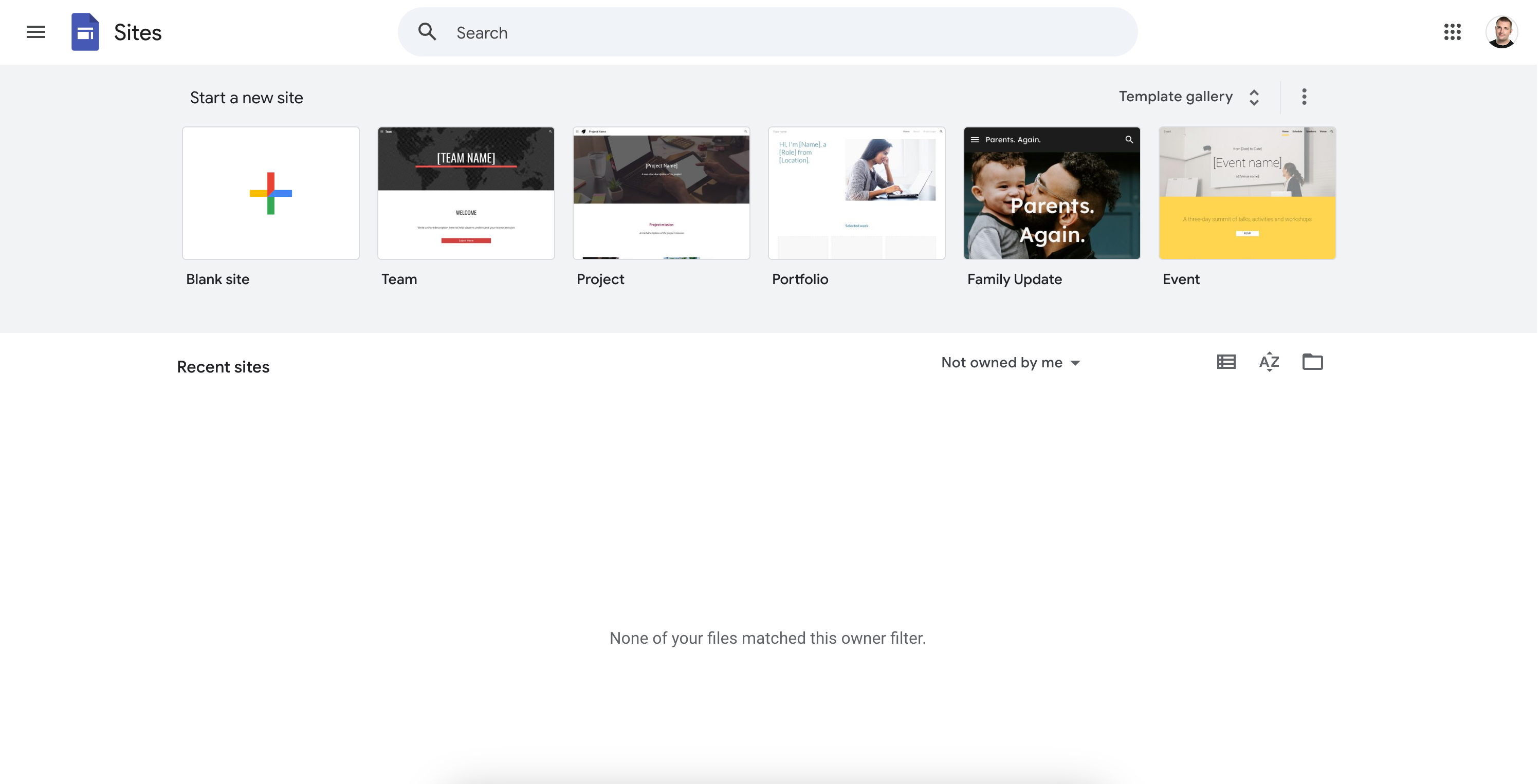
While you’re here, it’s worth noting that Google does offer some basic templates that you can use to create your portfolio. And while this might seem like a good shortcut, most of the templates are pretty generic, barebones, and often overused.
Remember, you want your portfolio to showcase the uniqueness of your professional brand and skillset, so when using Google Sites to create your instructional design portfolio, I recommend creating a blank site; that way, you can customize it to your liking.
Design the Home Page
Once you create your blank site in Google Sites, this is where things can get a little overwhelming. Before you start adding any graphics, logos, additional pages, or anything else, I recommend starting with your site name and the front page banner, also known as the “hero section.”
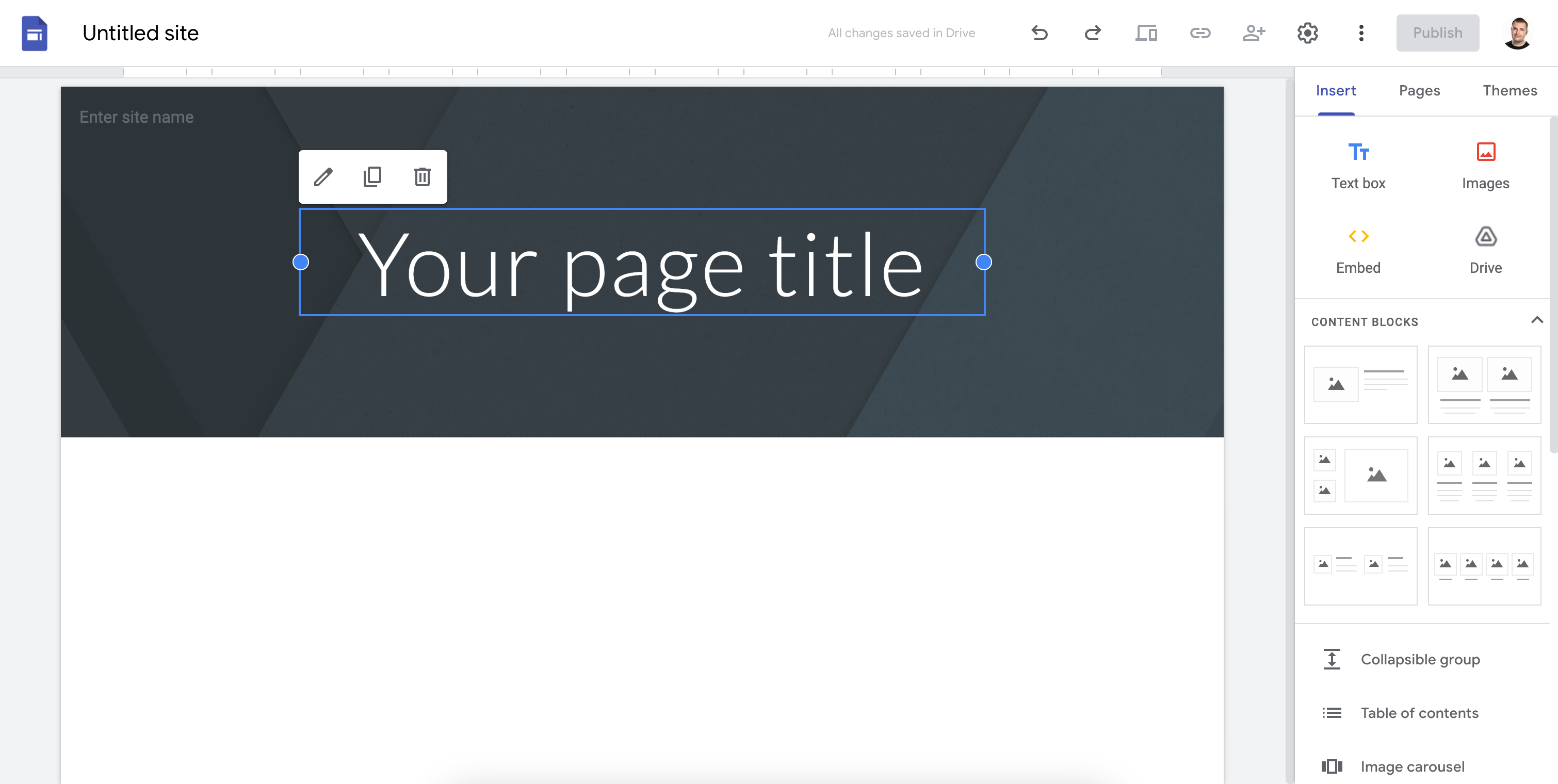
This is the first thing that a potential hiring manager or client will see when they visit your portfolio, so you want to think like a marketer. Instead of saying something like, “Welcome to My Portfolio,” lead with something more personal and descriptive, like:
“Hi, I’m Sara James. I design learning experiences that people love.”
Create a Custom Theme
Once you’ve defined the content of your header or hero section, my next recommended step is to create and customize your own theme. Themes in Google Sites allow you to define your portfolio's colors, fonts, and styles, which can save you time and help you maintain visual consistency throughout your website.
This is often where a lot of people go wrong. Instead of defining a theme, many folks will manually set font styles, text sizes, and colors for each content item they add to their portfolio. This often results in design inconsistencies and sloppiness, which isn’t what you want a hiring manager to see. So, the more time you invest in defining your theme, the easier it will be to design your instructional design portfolio.
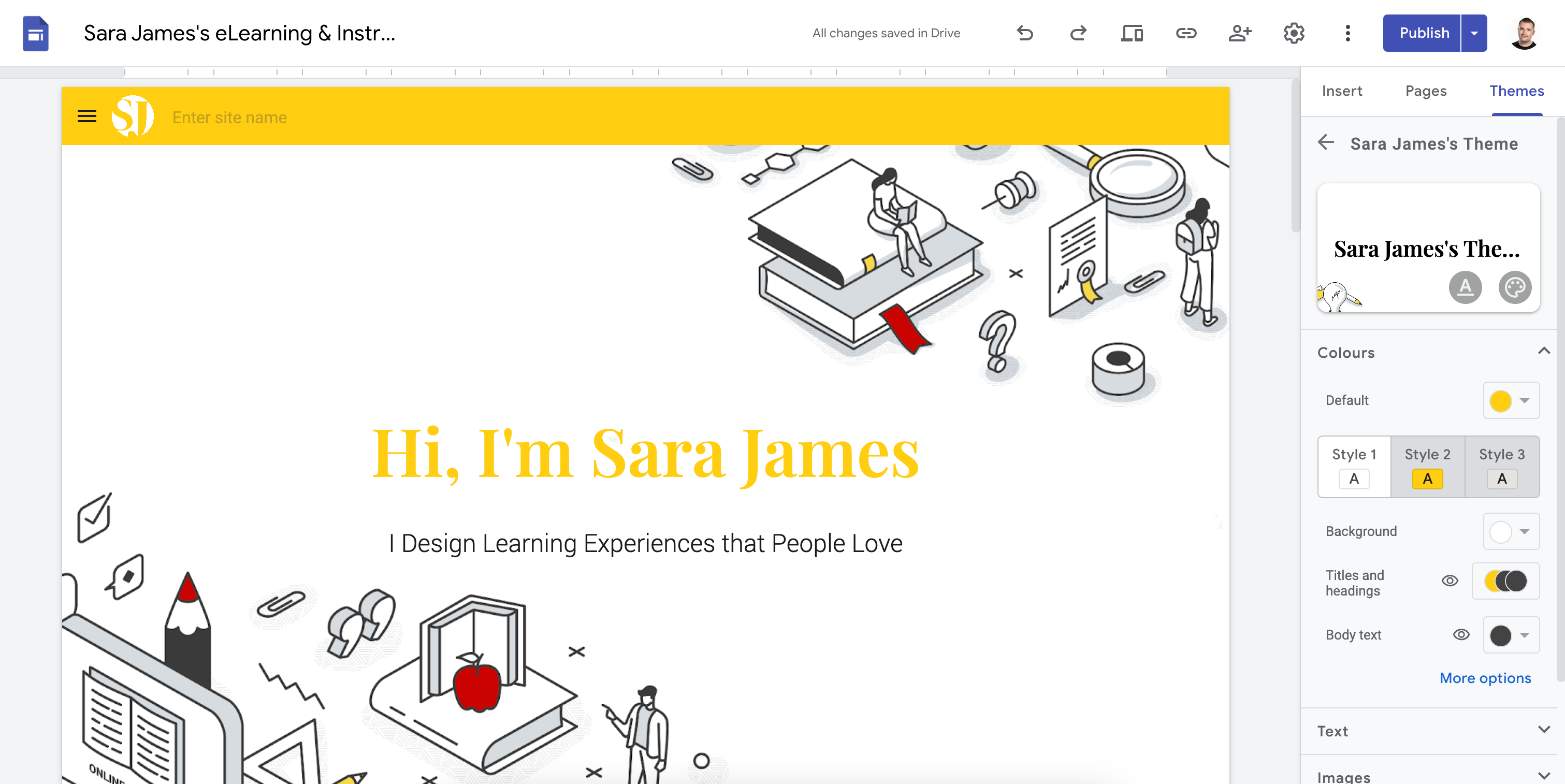
Just like the various templates Google Sites offers, you can also have several pre-built themes, all of which are perfectly acceptable. Whether you create your own custom theme or select a pre-built one, the most important thing is that you stick with it and stay consistent.
If you do decide to build your own custom theme, in addition to selecting various fonts and colors, you’ll also be asked to upload a logo and banner image. If you don’t have these assets, I share how I created my own for the Sara James example in my step-by-step video above.
Add Content Section for the Home Page
After you’ve invested time customizing the theme for your portfolio, the next step is to start adding content. Again, I recommend starting with the home page, using the content you’ve hopefully already drafted in the planning document I’ve provided for download.
When crafting the content and layout for your home page, don’t overthink it or put too much content. Instead, consider the font page a high-level overview of the rest of the site, inviting the viewer to visit the more detailed pages.
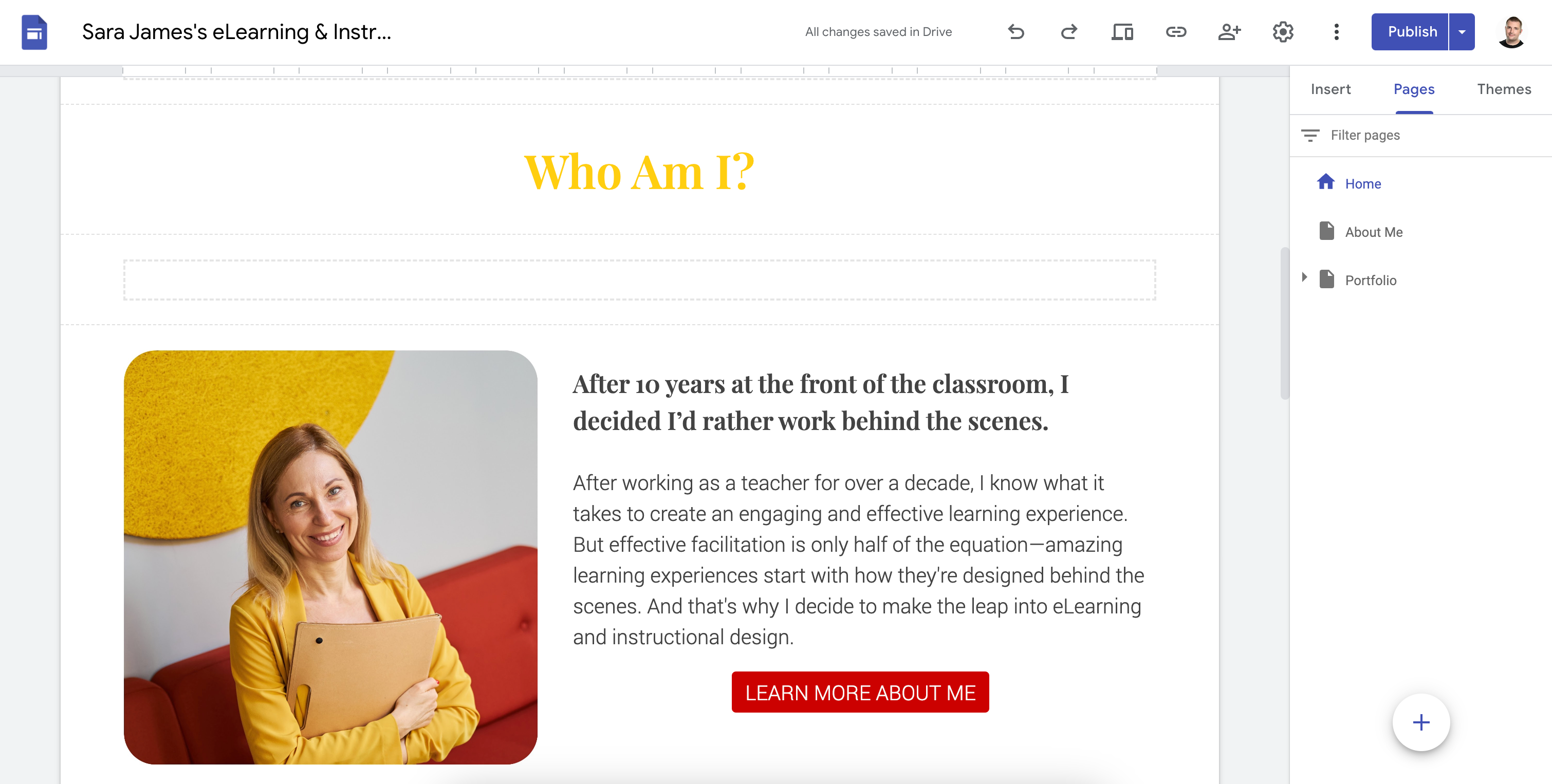
In the Sara James example, the font page has two content blocks below the banner section, one with a high-level “Who Am I?” and another “What Do I Do?,” each linking with a call to action button (or CTA) to their respective pages.
Create an About Me Page
After you’ve created the front page of your eLearning or instructional design portfolio, the next page I recommend building is the About page. And rather than creating a new page from scratch, I recommend duplicating the Home page; that way, you can repurpose the content blocks you’ve already created and configured. Again, this will help you maintain design consistency and save time.
The About page is another one that folks overcomplicate. One mistake I often see is folks who create their About page as a digital or online version of their resume, listing all of their professional experience and skills in chronological order. And while those details are important, there are more interesting ways to convey this information.
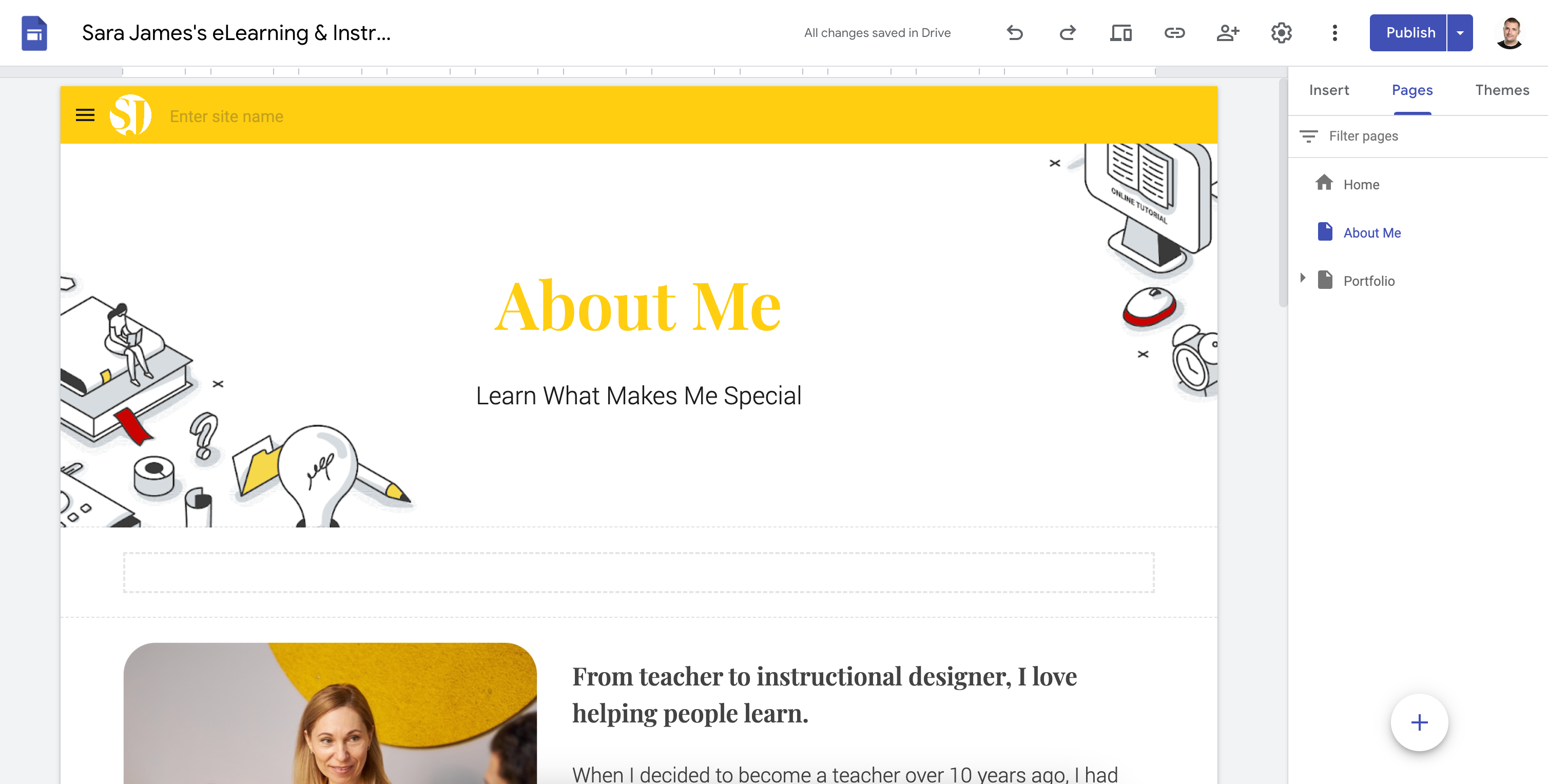
I recommend using your About Me page to tell your story. Who are you? Why are you interested in instructional design or eLearning development? What makes you unique? What type of work are you looking for? These are all questions you should be able to answer in your About page.
And, of course, if you still want to provide access to your resume (or LinkedIn profile) after you have your story drafted, add a button for the hiring manager to download it. I don’t recommend trying to embed it as a PDF or Google Doc—it never looks right and often doesn’t work.
Create a Portfolio Page
Next up, we have the Portfolio page! This page is obviously the most critical page your website will have to offer after your Home page, as this is where you’ll showcase your work and skills.
When it comes to creating the main Portfolio page, your goal is to create something that’s simple, easy to navigate, and, most importantly, scalable! The biggest mistake I see folks make is when they try to create a portfolio page that crams all of their portfolio examples and details onto a single page. This often results in confusion, as the viewing (often a hiring manager) is unable to discern where one project ends and another begins.
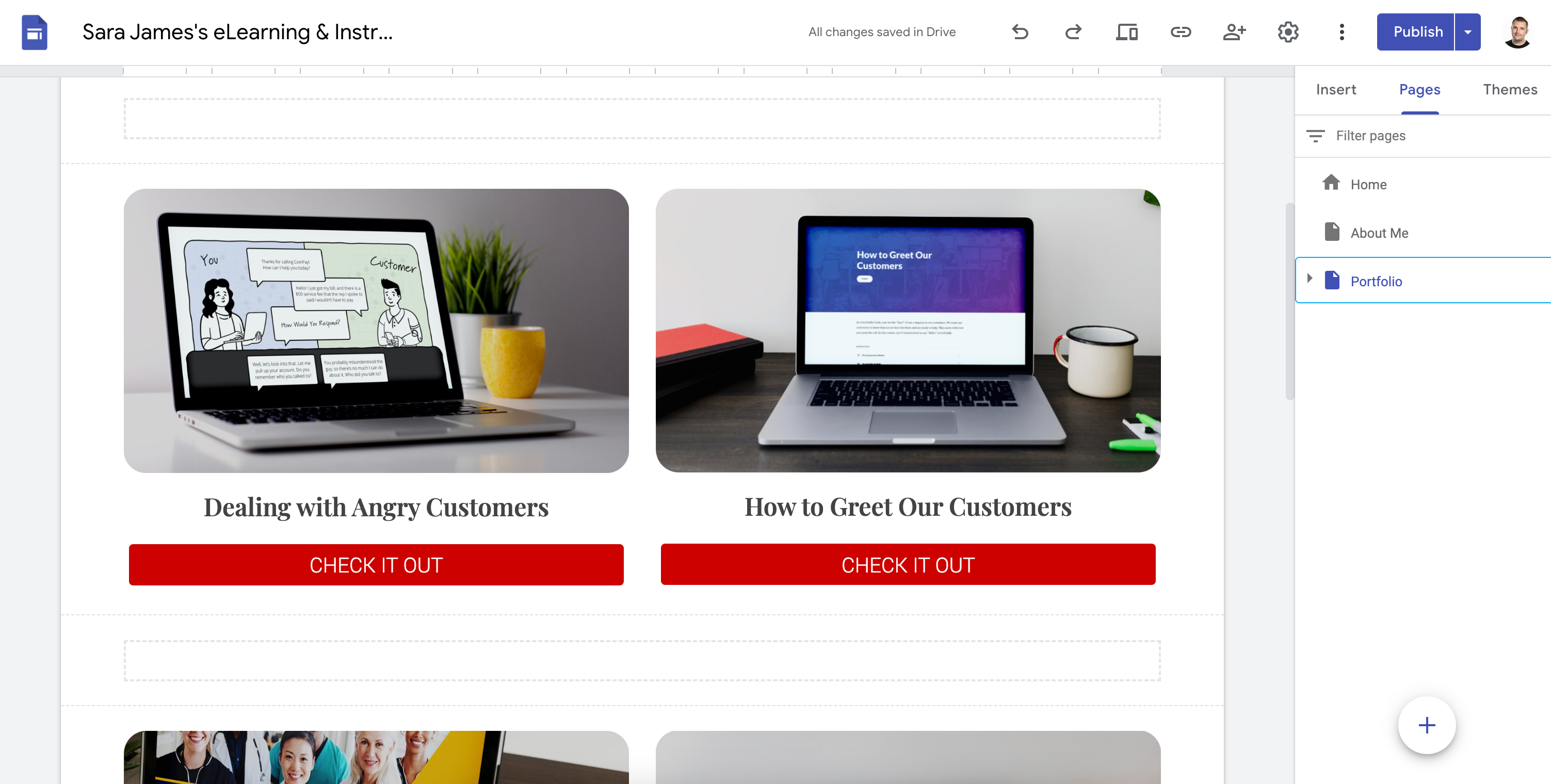
Instead, create a simple page with some images and text for each project, along with a call to action button to learn more. That’s it! Keep it simple! That way, as you continue to build samples of work for your portfolio, it's easy to add them to the mix.
Create a Project Details Page
After you have created your main portfolio page, you can turn your attention to the individual portfolio pages for each of your projects. This is where a hiring manager will view all of the details for a given project, including your design process, etc.
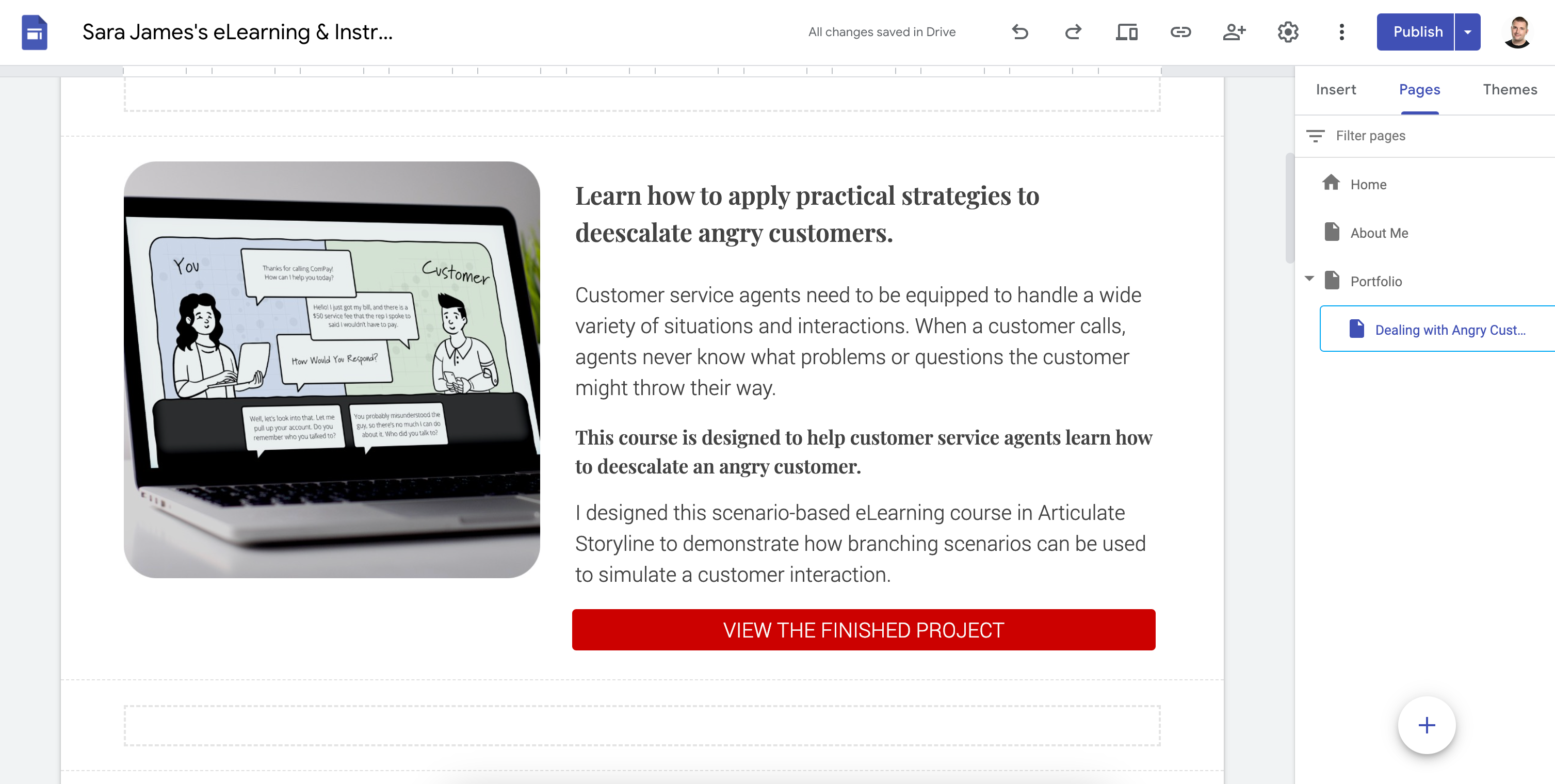
While there’s no “right” way to lay out the details for any portfolio project, I recommend including a brief description, an image (or mock-up), and a button to view the completed piece of work right at the top. Don’t make a hiring manager hunt to see your work!
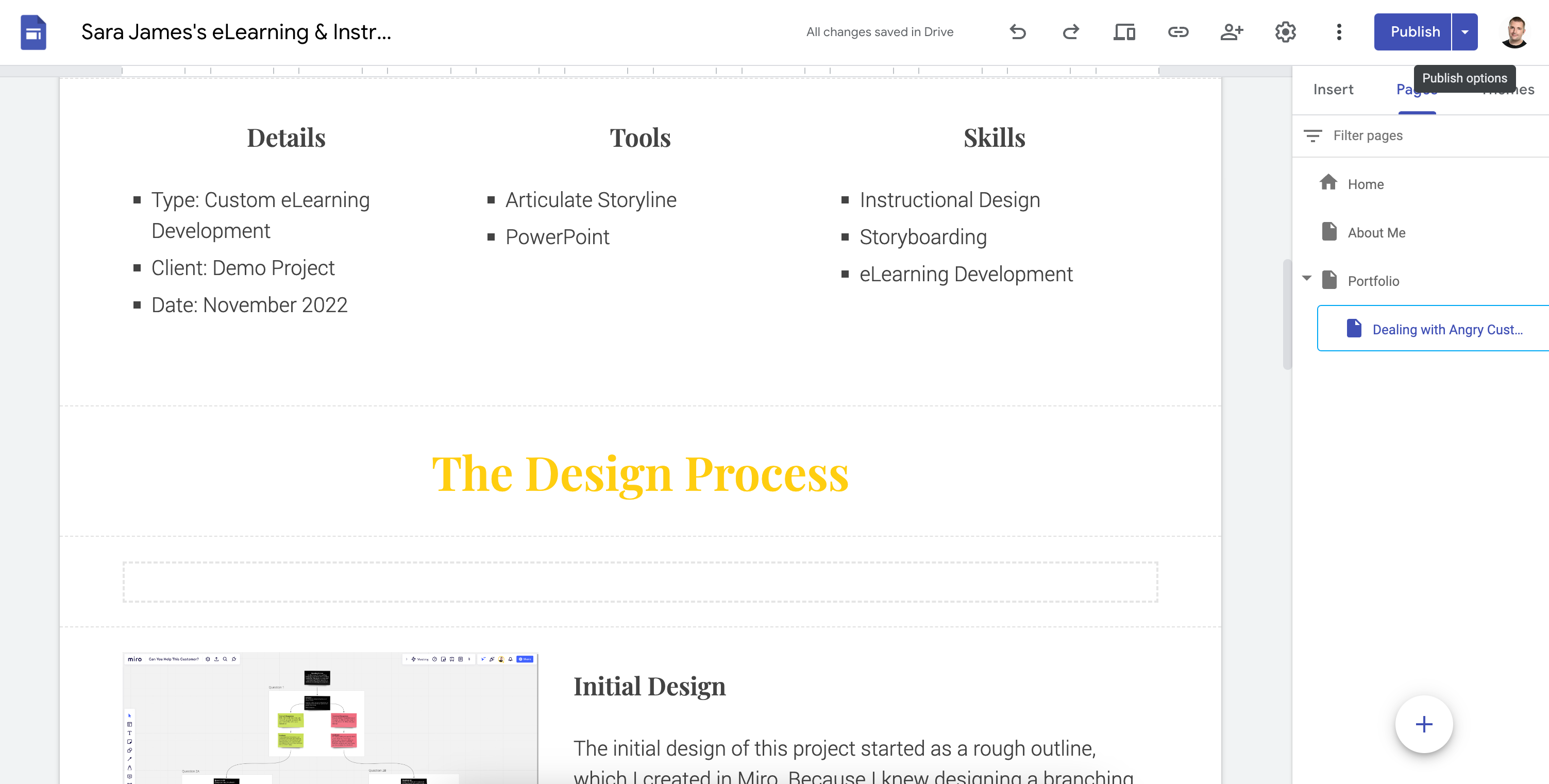
From there, you can start adding additional details. Personally, I like to include some “at-a-glance” information about the project, such as what tools and skills were used. From there, you can get into more detailed information about your design and development process.
What you choose to focus on at this point is totally up to you and the type of work you want to be doing. For example, if you’re more interested in the upfront parts of the instructional design process (needs analysis, design, planning), I recommend focusing on what problems you were trying to solve with your project and how you would measure them. And on the other hand, if you’re more interested in the development or creative aspects, I recommend focusing on the technical aspects of your project.
Finally, once you create a single project details page, you can easily create additional pages simply by duplicating the page you’ve created. Again, your goal is to stay consistent and save time when adding new projects to your portfolio.
Publish the Website
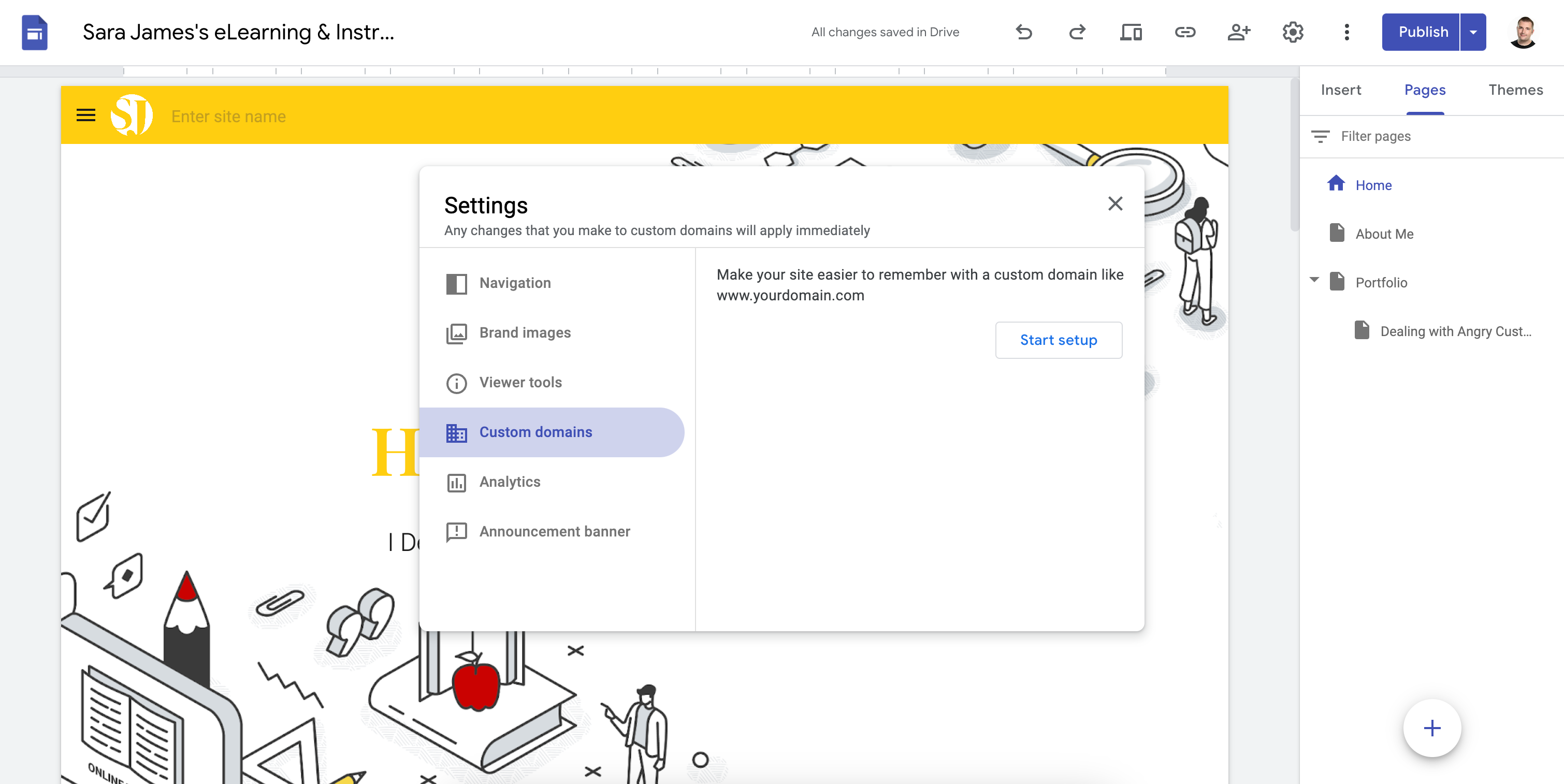
Okie dokie! Once you’re done creating your eLearning or instructional design portfolio, the final step is to publish it. Luckily, Google Sites makes this super easy as well. You can simply publish the site inside Google Sites, giving you a link you can instantly share. The main drawback with this option is that it’s not a custom domain name.
So, if you’d like to use your own domain, you can easily buy one from Google Domains and connect your Google site.
Google Site Instructional Design Portfolio Examples
If you’d like to see some real-world instructional design portfolio examples built in Google Sites, check out these portfolios below!
What’s Next?
Want to keep learning more about building your instructional design portfolio? Check out these additional resources…
The Bottom Line
So, that’s how you can build an instructional design portfolio with Google Sites. Like I said, the technical aspects of building a portfolio in Google Sites is relatively easy—the hard part is the content of what you want to present on your portfolio.
So, what do you think? Have you used Google Sites to create your own instructional design or eLearning portfolio? Share a link to it below, and tell us what tips or recommendations you have!
Also, if you’re looking for something that’s a bit more custom, check out my other post, where I share how to build your instructional design portfolio in Canva.