How to Build Your Instructional Design Portfolio in Canva
If you're looking to build your first instructional design or eLearning development portfolio, you probably already know: it can feel incredibly overwhelming. Not only are you trying to showcase your skills and land a job, but now you also have to figure out how to design a whole website about yourself? Yeah. It's a lot.
The good news? You don’t have to be a web designer to build a great-looking portfolio. And with tools like Canva’s website builder, creating a clean, professional, and personal site is easier than ever—even if you’ve never built a website before.
In this article, I’ll walk you through how to create your own instructional design portfolio using Canva, based on a real redesign I did for one of my students from my Hands-On Cohort & Coaching Program.
How to Build Your Instructional Design Portfolio in Canva (Step-by-Step)
Recently, one of my cohort students, @Julia Bouchelle, shared the first draft of her portfolio with me. She built it entirely in Canva using one of their website templates. And while it was a great start, it had some of the same challenges I see all the time: unclear structure, way too much content on the homepage, and some visual inconsistencies.
So I took on the challenge of redesigning her portfolio from scratch—using Canva myself for the very first time. And in less than two hours, I was able to build a polished, professional site that showcased her skills, told her story, and could scale with her as she added more projects.
Here’s how you can do the same.
Step 1: Choose a Canva Website Template (and Stick to It)
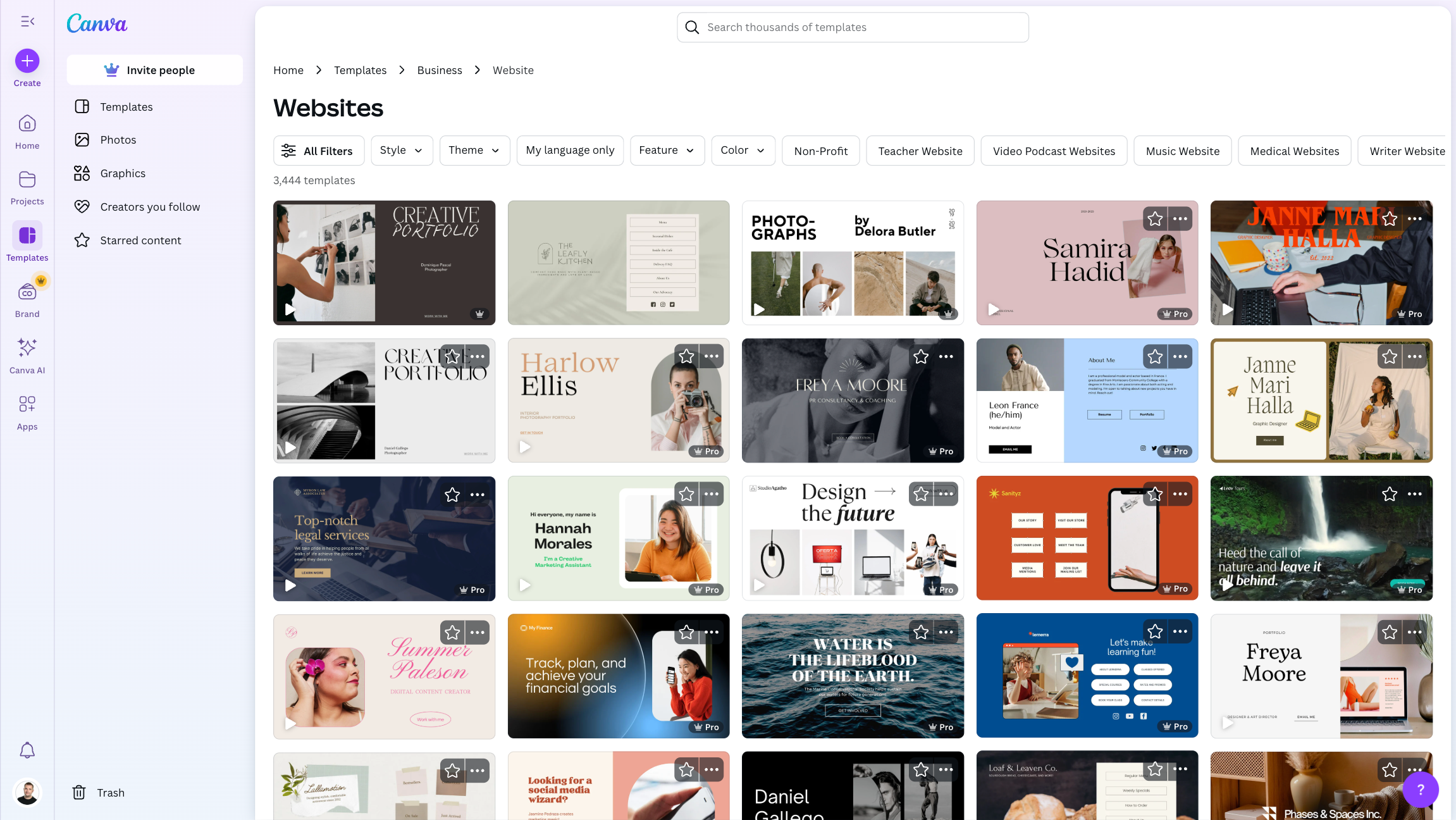
Start by opening Canva and searching for “portfolio website” templates. There are tons of options to choose from. Pick one that aligns with your personal aesthetic, but more importantly—stick with the template’s structure.
Avoid the temptation to customize every little thing or start from scratch. The built-in layouts, fonts, and color schemes are designed to look good together. So pick a template, and make your content fit into it.
Step 2: Customize the Homepage (a.k.a. Your Hero Section)
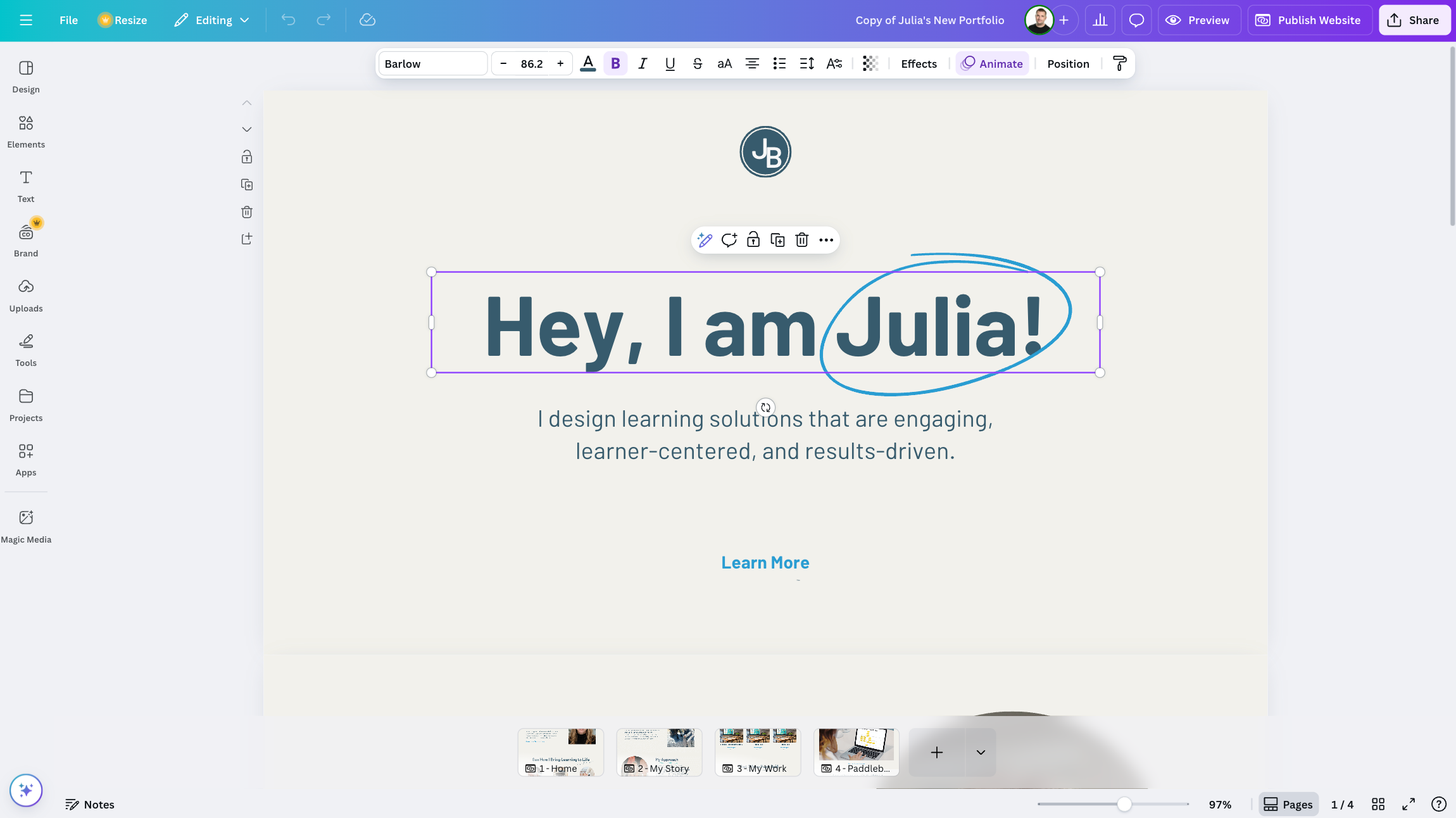
Your homepage should introduce who you are, what you do, and why someone should keep exploring. Think of it like a high-level overview. In Julia’s case, we used a clean hero section with this simple intro:
"Hi, I'm Julia. I design learning experiences that are engaging, learner-centered, and results-driven."
We also added a call-to-action button to “Learn More” that scrolls to her About section, plus a few curated personal photos to show personality.
Free Course: 10-Day Career Mindset Reset
Inside The eLearning Designer’s Academy, we think a little differently about professional development and career growth. Enroll in our free 10-Day Career Mindset Reset to start thinking differently about your skills, career, and confidence!
Step 3: Write and Structure Your About Page
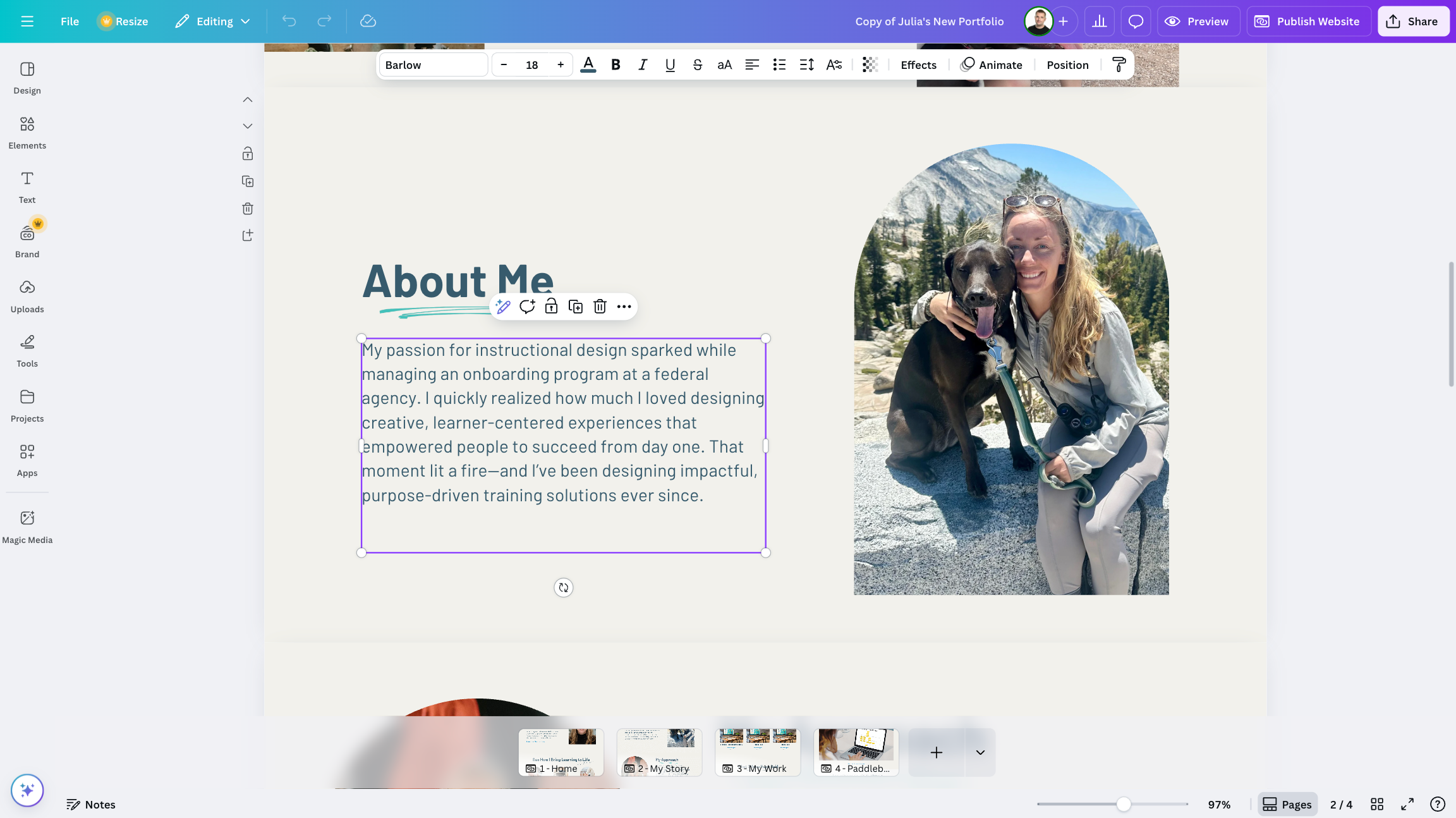
Instead of cramming everything onto the homepage, create a dedicated About page. Duplicate your homepage layout to keep the design consistent, then update the content.
Use this page to share your story—why you’re pursuing instructional design, what makes your background unique, and the kind of work you want to be doing. Don’t turn it into a digital resume. Keep it personal, clear, and purposeful.
Step 4: Create a Portfolio Page That Highlights (Not Overwhelms)
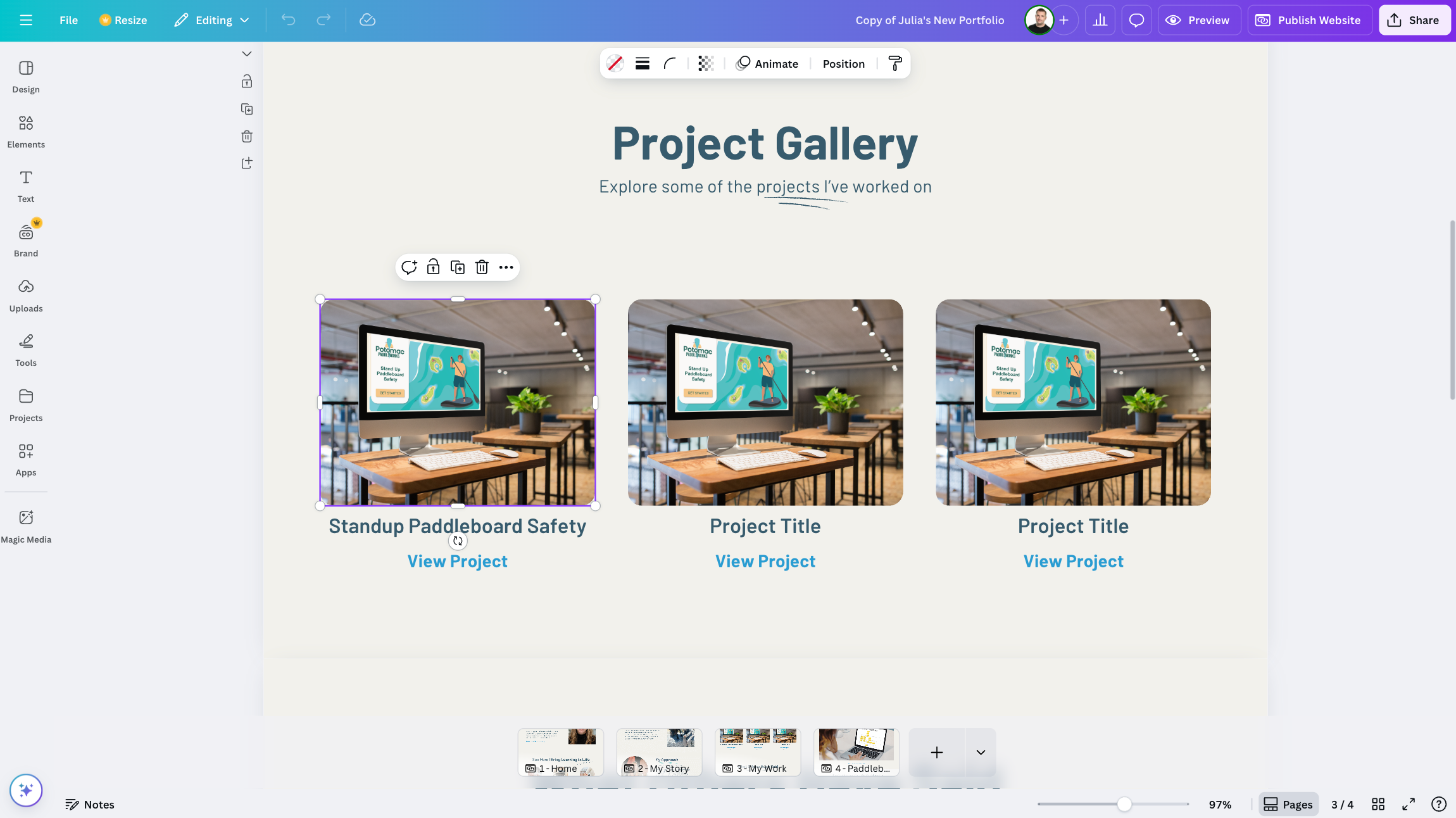
One mistake I see all the time is putting every project detail on a single long page. Instead, your Portfolio page should act like a gallery or preview.
Use thumbnail images, project titles, and short descriptions, with a “View Project” button for each item. That way, it’s easy to browse, and you can scale it as you add more work over time.
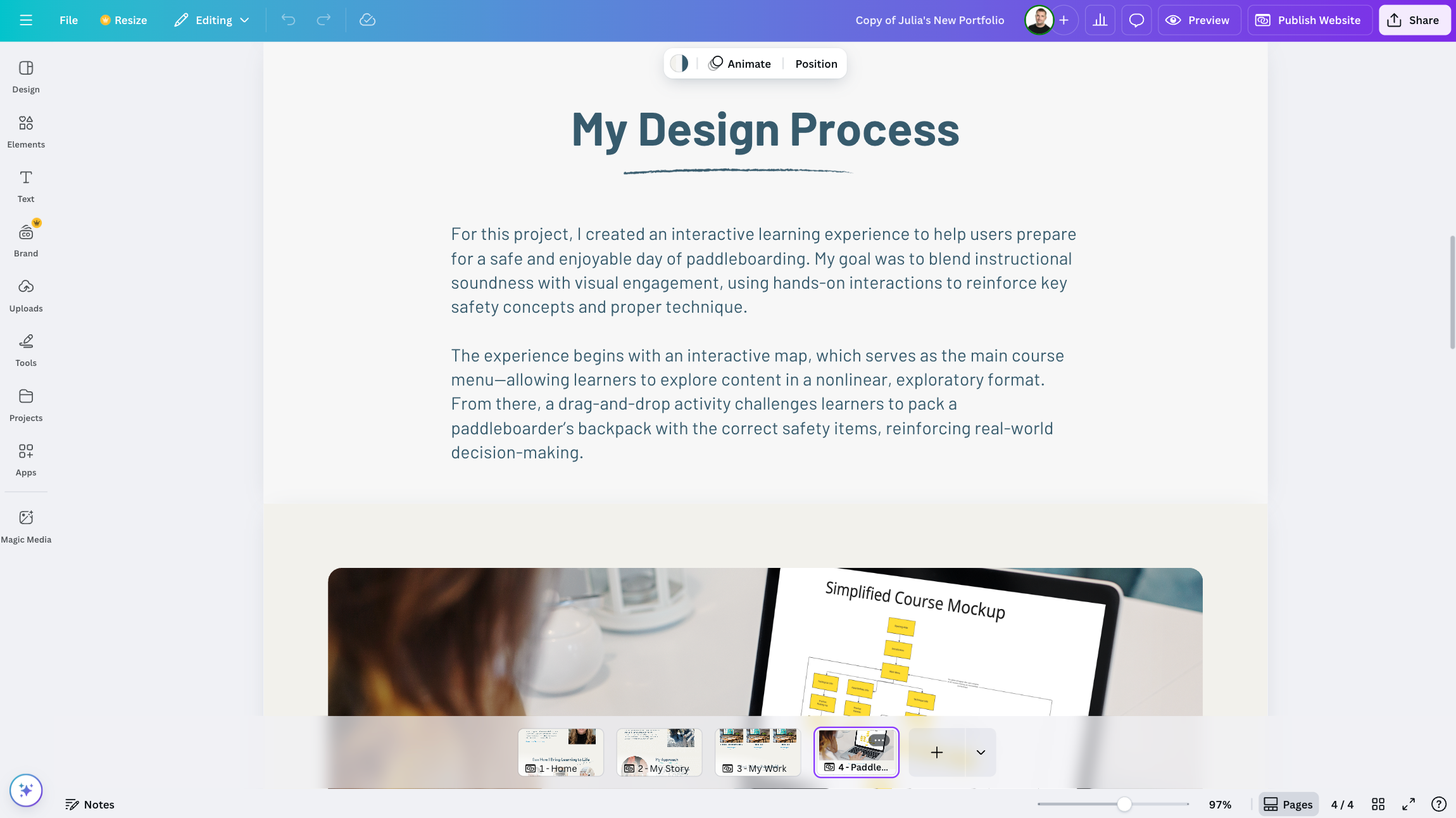
Step 5: Build a Project Page Template
For each project, create a dedicated page with:
A brief summary
A mockup or video preview of the project
A call-to-action to view the live project
Your design process and any relevant artifacts (storyboards, outlines, etc.)
Keep the structure consistent across projects. Canva’s drag-and-drop interface makes it easy to duplicate a page and swap out content.
Step 6: Add Personality Through Photos and Visuals
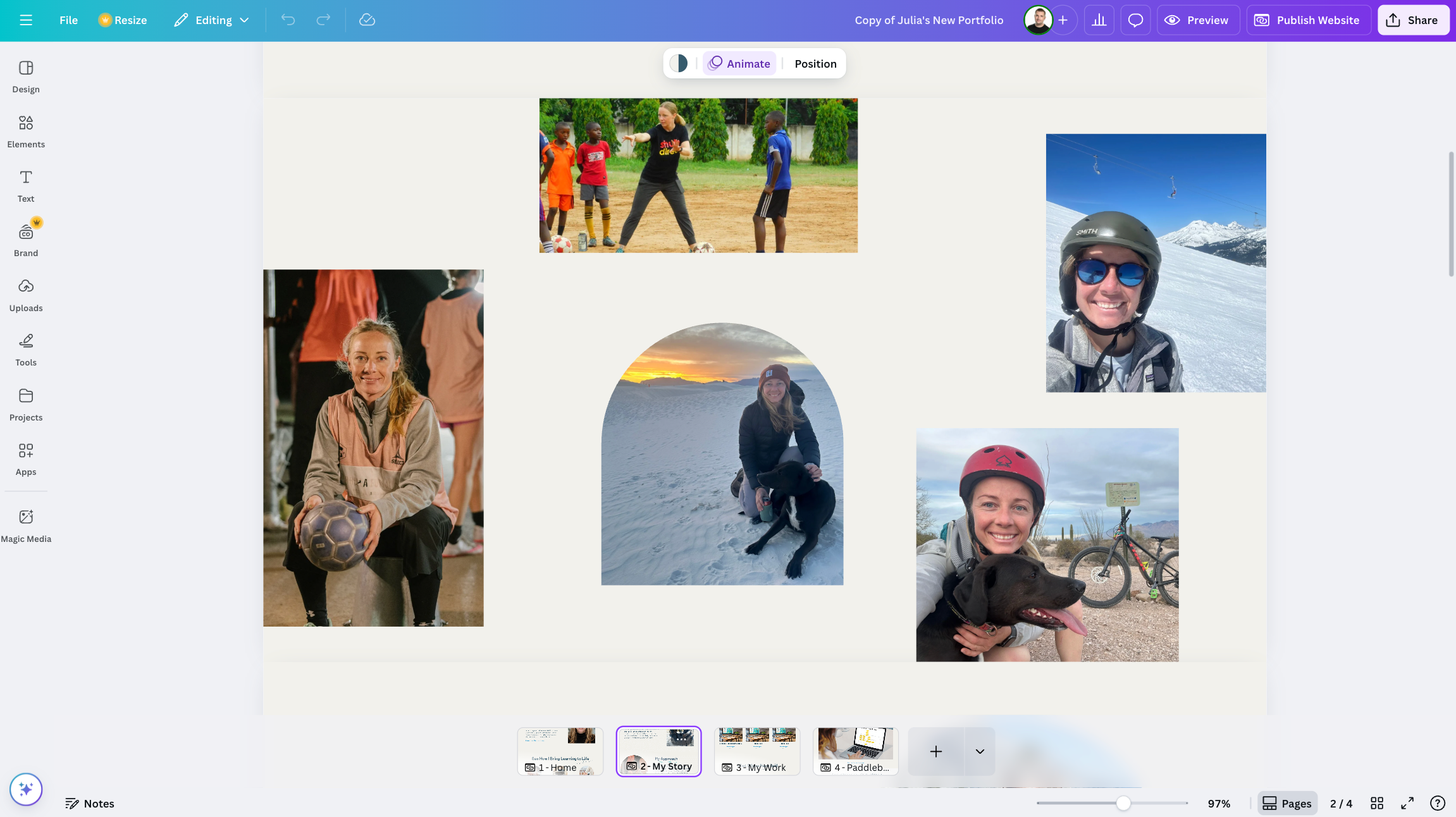
Don’t sterilize your site. People want to hire you—not a faceless template. Use real photos that reflect who you are (your dog, your hobbies, your travels) while staying professional.
This human touch builds trust and helps your portfolio feel unique and authentic.
Step 7: Publish Your Portfolio
Once everything is in place, publish your site directly through Canva. You’ll get a shareable link you can use in job applications, on LinkedIn, or anywhere else.
If you want to take it up a notch, you can connect a custom domain through Canva as well.
What’s Next?
Want to keep learning more about building your instructional design portfolio? Check out these additional resources…
The Bottom Line
So, that’s how you can build an instructional design or eLearning portfolio using Canva. Like I said, the technical side of using Canva’s website builder is surprisingly intuitive—even for someone like me who had never used it before. The real challenge is deciding what content you want to include and how to present it in a way that reflects your skills, your personality, and the kind of work you want to be doing.
Take a moment to check out Julia’s finished portfolio site here.
So, what do you think? Have you used Canva to create your own instructional design or eLearning portfolio? Share a link to it below, and tell us what tips or lessons you learned along the way!
If you’re looking for additional options to build your eLearning or instructional design portfolio, check out my other post, where I share how to build a portfolio step-by-step in Google Sites.